
The directory now compares six community projects: WTE Mod Menu, Time Speed Slider, Storage and Tools, Elderfield Gift Preferences, Load plain assets, and the unofficial elderfield-ko Korean patch. The developer announced official mod support on October 10, 2026 Shanghai time, but that announcement describes a future update and supplies no release date. It does not establish that official support or a Steam Workshop installation route is already available.
The WTE Mod Menu 1.5.0 package reviewed on October 3 documents auto-fishing, configurable hotkeys and more item options. Follow the installation paths below, then test one feature at a time. Back up the game and save before installation, and check whether a package replaces js/plugins.js, because that registry may already contain another mod's entries. Match any later package to its own author instructions rather than assuming this recorded version is always the newest.
Distinguish available mods from announced support
| Option | Status checked for this guide | Next action |
|---|---|---|
| WTE Mod Menu 1.5.0 | Existing community package; instructions reviewed October 3 | Match the downloaded version and preserve the game's plugin registry |
| elderfield-ko | Existing unofficial language project with a build-specific prerelease | Check the exact Windows Steam build before installation |
| Official mod support | Announced in the October 10 development post; not released by that announcement | Wait for published implementation and installation instructions |
The announced update also includes combat balance work, changes to the Mining and Farming Levels systems and a new Cooking skill. Its post discusses localization and testing before the content update can go live. That Steam post does not establish a released mod API or compatibility promise. The developer’s public Professions devlog describes planned folder-based loading and configuration. Some community authors also document manually enabling a bundled VirtualModLoader in particular game installations. These are different evidence scopes: follow the exact package and game build rather than assuming one universal installation route or that every promised support feature is already live.
Browse six source-reviewed community projects
Use the directory’s purpose filters and search to compare installation requirements before downloading. It includes author links and a separate compatibility limit for every project. All six records remain visible without JavaScript; interactive filtering needs JavaScript.
| Project | Purpose | Installation distinction |
|---|---|---|
| WTE Mod Menu | Items, movement and convenience menu | Script plus plugin-registry entry |
| Time Speed Slider | Longer days through clock control | Author’s Windows Steam installer |
| Storage and Tools | Storage menu and carried-item container | Preserve existing registry; empty Tools before removal |
| Elderfield Gift Preferences | Inventory gift-reaction lookup | Requires Loganxf Mod Loader and the ~mods folder |
| Load plain assets | Ordinary image and audio loading | Register one plugin; retain encrypted originals |
| elderfield-ko | Unofficial Korean localization | Build-specific install and restore scripts |
The four linked installation pages separate these routes. A tilde-prefixed ~mods folder is not the same as mods or js/plugins/. This directory is a reviewed selection, not a claim to contain every available mod or an independently tested compatible bundle.
Welcome to Elderfield mods by purpose
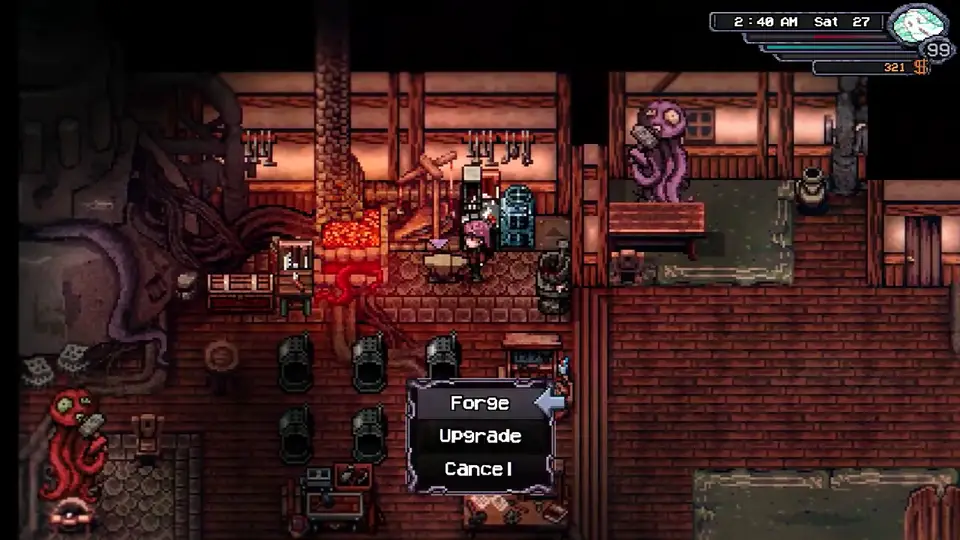
Choose a modification by the problem you want to solve. A language patch changes the reading experience, while a convenience menu can change progression, resource acquisition, or movement. Neither should be treated as a generic performance fix simply because it adds files to the game directory.
| Project | Intended use | Important boundary |
|---|---|---|
| WTE Mod Menu | Item, money, movement, and other convenience options | Some features can affect progress and achievements; Steam Deck behavior is not fully tested |
| elderfield-ko | Unofficial Korean localization | Windows Steam prerelease patch; the whole game has not been confirmed to work without issues |
| Cheat Engine table | A separate memory-editing approach | No matching released-game .CT table is verified in this guide |
Identify WTE Mod Menu by GamerWitchVic in the Welcome to Elderfield section of Nexus Mods, then use its Files section for the complete package. The Korean patch is the yoodong724/elderfield-ko project on GitHub, with packages under Releases. Match the project and version before using the instructions below so that similarly named tools are not confused.
If your search was specifically for a .CT file, read the Cheat Engine table-status guide. A plugin that offers money or items is a different tool, and its F10 menu is not evidence that a Cheat Engine table has been installed.
WTE Mod Menu features and limits
WTE Mod Menu opens with F10 once its plugin is correctly installed and registered. Its documented options cover money and items, movement speed, crafting from stored materials, and farming or mining conveniences. Read each option before enabling it rather than turning everything on to see what changes.
The crop-growth behavior has a relevant limitation: crops already planted are not affected by that feature. A field that remains unchanged after enabling it does not automatically mean that the whole mod failed to load. Test the feature according to its stated scope before modifying additional files.
Money granted through the menu can count toward cumulative-income achievements. That is a consequence of the action, not merely a display setting that disappears when the menu closes. If you care about preserving an unmodified progression record, keep a separate save from before the experiment.
The 1.5.0 label refers to the mod version, not a statement that the game itself has the same version number. Record both versions when comparing behavior. A matching number on one component does not establish compatibility with every game update or every other installed plugin.
Changes documented for WTE Mod Menu 1.5.0
| Option | Author-described behavior or limit |
|---|---|
| Skip Fishing | Automatic catch without the minigame |
| Lucky Dice | Favorable dice outcomes |
| Garbage Can Respawn | Tier 1 cans only; default interval is one hour |
| Character Stats Editor | Adjustable stat bonuses with a reset option |
| Processor Timers | Inspect a machine’s remaining time |
| Item Spawner | Now includes weapons and armor |
The release also adds a configurable menu key, in-menu Safe Mining controls and trough support for Universal Storage. Treat these as documented features, not compatibility guarantees. Do not assume that features planned for a later version are available in this package.
Back up the files that installation can change
Before installing anything, close the game and preserve an unmodified copy of the files you are about to replace. Keep the save backup separate from the installation backup so that you can distinguish restored program files from restored progress. Label the backup with the game and mod versions if you know them.
For WTE Mod Menu, pay particular attention to js/plugins.js. This file registers plugins; it is different from the js/plugins/ directory that contains individual scripts. Confusing those two paths can leave the game unable to load the intended plugin even though a similarly named file exists somewhere in the folder.
If you already use another mod, inspect its installation notes before replacing the registry. A bundled plugins.js can reflect the state expected by one package without including your other additions. Restoring an old registry later can also remove registrations that were added after the backup was created.
The useful preparation is therefore concrete: identify the game folder, the current registry, the scripts being added, and the save you will test. A general backup somewhere on the computer is less helpful if you cannot tell which version it contains. Keep the untouched copy until you have verified both normal play and the particular feature you installed.
Install WTE Mod Menu with the correct folder layout
The following layout applies to the reviewed WTE Mod Menu 1.5.0 package. If you select a later release, check its Files notes before using the same layout. Place ZZZ_ModMenu.js inside the game's js/plugins/ directory. The registration belongs in js/plugins.js, one level above that directory. These are two separate installation requirements, and completing only one does not make the menu ready.
Game folder/
  Game.exe
  js/
    plugins.js
    plugins/
      ZZZ_ModMenu.js
The script goes inside the plugins folder; the registry remains outside it. Do not create a second plugins.js inside js/plugins/.
The registration method depends on the installation you started with:
- Unmodified installation: the author offers a replacement plugins.js. Back up your current copy and compare it with the package before replacing it. For an updated game build, use the manual-entry method below if you cannot establish that the bundled registry matches your game.
- Preserve the current registry, including other mods: use the supplied plugin-manifest-entry.txt to add the mod's entry to the end of the existing $plugins array instead of blindly replacing the whole registry.
- After registration: launch the game and test F10 (or your configured menu key), then verify the feature you intend to use on your protected test save.
When editing the array, preserve the surrounding JavaScript structure and the entries for other plugins. A missing separator or a misplaced entry can prevent loading before you even reach the menu. If the game stops launching immediately after the edit, return to the backed-up registry and compare the change rather than adding more unrelated modifications.
Some launch reports were resolved by correcting the script and registry locations. That makes the directory distinction a useful first check when F10 does nothing. It does not establish that every unresponsive F10 key has the same cause, especially on a platform the author has not tested.
Configure speed without editing obscure code
The reviewed menu keeps speed control in its configuration file. Older comments describing edits to an obscure expression in the script should not be treated as the preferred configuration method. Use the settings supplied with the installed package and retain the original values before experimenting.
The mod uses ModMenuConfig.json and ModMenuConfig.log.txt in the game's main directory. Include both filenames when recording a configuration problem so that a setting and its diagnostic log are not mistaken for each other. Keep those files distinct from the game's package.json and plugin registry. They serve different purposes, so deleting or editing the wrong one can change more than the setting you intended to adjust.
To change the speed multiplier:
- Close the game and open ModMenuConfig.json in its main directory.
- Find the superSpeed object and its multiplier setting.
- Change multiplier within the documented range of 0.1 to 8; the default is 2.
- Save the file and restart the game, then check movement in a familiar area.
After upgrading, new settings use defaults before appearing in an older configuration file. Toggle any option once to write them, then close the game before editing. The hotkey field controls the menu key; F10 is the default. Preserve the rest of the JSON structure. The multiplier is the mod's movement setting; it should not be confused with the version number or assumed to adjust every other feature.
Known WTE Mod Menu problem areas
Historical user reports describe successful movement and convenience features while leaving other features untested. They do not establish the behavior of every 1.5.0 feature. Other reports describe farming behavior that produced large numbers of walking crops, slowdown, and repeated battles. These outcomes should remain feature-specific rather than being compressed into either “everything works” or “the mod always corrupts saves.”
| Symptom or concern | Relevant check | What is not established |
|---|---|---|
| F10 does not open the menu | Configured hotkey, script path and registry location | That path mistakes explain every failed menu |
| Crop feature behaves unexpectedly | Whether crops predate activation and which feature was enabled | A universal repair for every altered crop state |
| Walking crops and repeated encounters increase sharply | Restore the protected pre-test state if needed and stop using the affected feature | A confirmed permanent-save-damage diagnosis |
| Steam Deck item menu does not open | Platform support and the feature being tested | Full Deck compatibility for the mod |
| An upgraded trough behaves differently | Record capacity, upgrade and mod versions separately; trough storage support does not prove a capacity fix | A confirmed resolution of historical capacity reports |
A game update or new feature behaves unexpectedly
September 23–26 comments report an older displayed game version after replacing plugins.js. Preserve the updated game’s registry and append the supplied mod entry instead of reusing an older whole file. This is a registry compatibility check, not proof that the executable itself was downgraded. A syntax error after manual insertion is a reason to check the separator before the new entry and the final array bracket.
Recent comments also report timers not appearing on outdoor machines (September 30) and an invisible inventory entry after selecting an Item Spawner heading (October 2). These are individual reports, not reproduced diagnoses. Avoid spawning category headings and record the selected entry, location and installed versions when reporting a problem. No verified repair is available here.
The Bugs tab still labels its Blessing Potion stacking report as version 1.4.0. That record alone does not establish whether 1.5.0 is affected or fixed.
The base game's platform status does not transfer automatically to a third-party modification. In particular, an author saying that a feature has not been tested on Steam Deck is a meaningful limit. A Windows success report should not be converted into a promise about the same controls on Deck.
If the game fails before reaching the menu, compare an unmodified installation before changing runtime files. The splash-screen crash guide provides a separate symptom-based route for launch failures. Keep the timing of the failure clear: a problem first appearing immediately after a registry edit deserves that edit to be checked first.
Remove the mod without assuming progress is reversed
Removing WTE Mod Menu involves both its script and its registration. Delete the added script and remove the corresponding entry from the registry, or restore the appropriate unmodified registry backup. The mod's configuration and log files in the game directory can also be removed as part of clearing its own files.
If other mods were installed after your backup, restoring that older registry can remove their entries too. Compare the set of plugins you actually want to retain before replacing it. The right rollback is the one that returns you to a known intended configuration, not simply the oldest file you can find.
Removing installation files does not undo money, items, or achievements already affected during play. A save records progress separately from the plugin's presence. Use the preserved save to restore in-game progress from before the changes. This does not promise to revoke Steam achievements that have already been awarded.
After removal, launch the game, load the intended save, and check that ordinary actions still work. Then close and reopen it once more so that you are not judging success from a session that was already running with the old plugin loaded. Keep the backup until those checks are complete.
Unofficial Korean patch scope
elderfield-ko targets the Windows Steam game and is an unofficial Korean localization. The release checked on October 3 is v1.0.2a-25483278-rc4, a prerelease targeting Steam Windows Build 25483278. Its author states that other builds are rejected and full-game behavior has not been verified. The old v1.0.0 rc10 label should not be used to choose a package for a newer build. Treat that status as a limit on coverage rather than as a guarantee of a fully tested translation path.
The release's version label belongs to the patch. It is not a replacement for recording the installed game build. This is particularly important when a patch changes dialogue, fonts, plugins, and images that may also be touched by a later game update.
The patch is more than one translated CSV. Its installation logic includes game_messages.csv, fonts, the plugin registry, localization code, and image resources. That broader file scope matters when planning backups and when comparing compatibility with another plugin-based mod.
Install and restore the language patch
The documented layout places the unpacked package in the game directory containing Game.exe. The installation entry point is elderfield-ko/install.cmd, and the restoration entry point is elderfield-ko/restore.cmd. Before using either, keep a separate copy of the unmodified game files and the save you intend to retain.
The installation script checks for the game executable and message file. If it cannot find the expected files, confirm that the package is in the intended directory instead of copying pieces into several locations until something runs. A successful script launch from the wrong folder is not the same as a successful patch installation.
After installation, verify that the game launches, the language appears as intended, and the parts of the interface you use remain readable. The existence of restore.cmd provides a restoration path, but it does not prove that the package has been tested against every later mod combination. Read what the restore operation returns to before assuming it will preserve changes installed afterward.
Both this patch and WTE Mod Menu can involve js/plugins.js. Their shared use of that file is a concrete reason to compare installation changes carefully. It is not proof that they always conflict, but there is no verified basis here for promising that they can be combined in any order without adjustment.
Choose a modification only when it solves your problem
If your difficulty comes from an unclear task, a missing tool, or a locked workshop, a mod may not be necessary. The beginner tips and axe upgrade guide explain progression steps that are easy to miss. Completing those steps can solve a resource bottleneck without changing the installation.
If you do want a modification, choose the smallest documented feature set that serves your purpose. Keep gameplay changes, language changes, and launch troubleshooting separate long enough to verify each one. That gives you a clear way to retain a useful change or return to the original setup when the result is not what you expected.
Choose a package-specific installation route
Read the dedicated Time Speed Slider guide for its clock and Options-menu limits, Storage and Tools for the required inventory cleanup before removal, Gift Preferences for the Loganxf loader dependency, or Load plain assets for its PNG and OGG fallback behavior. A project-specific route keeps distinct installation methods separate.
Editorial verification
This guide was source-checked on . Confirmed game details, community observations, older-build behavior, and unresolved evidence gaps are identified in the article instead of being presented as equally certain.
Found an outdated step or a version mismatch? Send a correction to Kevin.