
For low FPS in Welcome to Elderfield, first match the test to your device. On Steam Deck, the September 18, 2026 release update recommends Full Screen ON and Stretch Screen OFF. On PC, check Ambient VFX, Weather VFX, Footprint VFX, and Fog VFX where your Options menu offers them, changing one effect at a time. Compare the same scene after each change.
These settings can reduce visual work, but they do not guarantee a particular frame rate. Steam Deck and Linux stuttering can also involve Proton, so a graphics adjustment may leave occasional pauses even when the average frame rate improves.
This guide applies when you can enter the game and play. If it closes during the opening logos, follow the splash screen crash guide. If the problem is a crash at the day change, use the midnight crash guide.
Make the first test repeatable
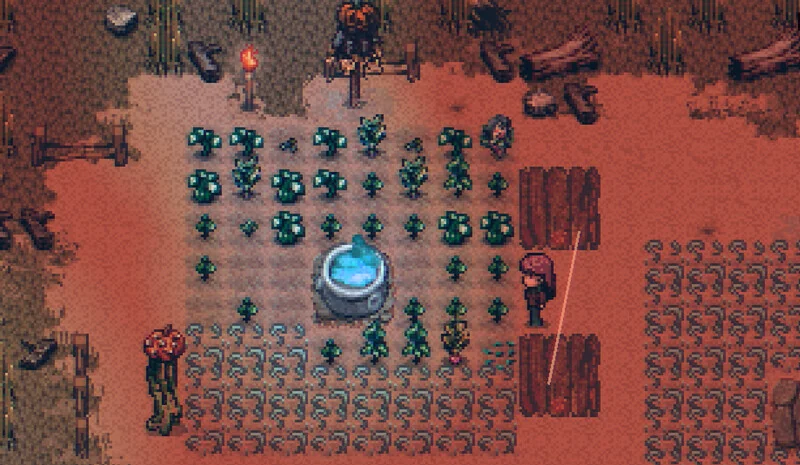
Identify whether you have a consistently low frame rate or occasional pauses. A farm that feels slow throughout a walk is a different symptom from a brief hitch followed by normal movement. Write down which of these you see before changing settings.
For a useful comparison:
- Pick a short walk in the affected area.
- Keep the same save, location, and camera view for each test where practical.
- Note whether the problem happens immediately on entering the map or continues after you wait.
- Change one setting, repeat the walk, and compare the result.
- Keep a change only when it helps enough to justify the visual difference.
Changing several settings together can show whether a reduced-effects setup helps overall, but it cannot tell you which effect made the difference. If you first turn everything off, restore individual effects afterward to find a balance you prefer.
Reduce the graphics effects your build offers
Open the game's Options menu and inspect the graphics settings. Menu labels and available choices can differ between builds. The following effect toggles were added in Demo v0.11.17; check which ones appear in your installed version rather than assume an older settings guide matches your menu.
| Setting | Suggested comparison |
|---|---|
| Ambient VFX | Turn it off and repeat movement in the affected outdoor area |
| Weather VFX | Compare the same weather conditions with the effect disabled |
| Footprint VFX | Compare movement with footprints disabled |
| Fog VFX | Compare the affected foggy area with the fog effect disabled |
| NPC Dialogue Zoom | Disable it if the slowdown is most noticeable when conversations begin |
| Map Transition Filter | Disable it if transitions are the part that feels especially uneven |
Treat these as tests, not a promise that one particular switch fixes every computer. The four VFX toggles were introduced to help lower-spec devices with frame rates and stutters. NPC Dialogue Zoom and Map Transition Filter are separate visual options you can check when the symptom matches those moments.
Disabling Weather VFX does not remove every indication of weather: the update retains screen tint and sound cues. That gives you a practical way to reduce animated effects while still recognizing the conditions around you.
Where your menu also offers lighting, screen filters, or fog controls, test those individually. Do not look for conventional settings such as shadow resolution or texture presets unless they actually appear in the game. A generic PC guide can describe controls that this game's menu does not have.
Check post-processing and the 30 FPS option
The earlier v0.11.2 update added graphics controls that could scale down or disable the game's additional HD post-processing effects, alongside an optional CRT filter. If those controls appear in your build, compare the affected scene with the extra filters reduced or switched off.
Start with the effects you can visibly identify in your own menu. Restoring one after a test is easier than trying to reconstruct an entire settings configuration from memory.
That update also added an option to lock the frame rate to 30 FPS. If it remains available in your version, try it as an alternative target when the higher frame rate is uneven. A frame-rate lock limits the target; it does not create performance your machine cannot deliver. Compare movement and responsiveness yourself before keeping it.
Avoid treating 30 FPS as compulsory. If your game already runs comfortably at a higher frame rate, reducing the cap is unnecessary. If brief freezes continue under the lower cap, you still have a stuttering problem to investigate.
Compare the farm with another area
If the farm is the main problem, compare it with the farmhouse or another nearby map using the same settings. This helps you describe whether the slowdown follows your device everywhere or is concentrated in a particular scene.
Farm performance has received specific optimization work, including changes aimed at heavily decorated farms. The v0.11.2 update also described a possible pause when first entering the farm on an existing save. Give the scene a moment before classifying a short entry pause as a continuous low frame rate.
Do not assume the moving tentacles are responsible simply because they are noticeable. The developer has explained that their animations share a sprite sheet and have a small performance impact. Test the available effects first instead of reorganizing your whole farm around that guess.
Record the distinction between an initial pause and ongoing slow movement. If the farm remains affected while another map performs normally, include both locations in a problem report; “the whole game is slow” loses useful detail.
Steam Deck and Linux stuttering
Welcome to Elderfield is a Windows game. On Linux and Steam Deck, compatibility software is another variable in the performance path.
Start with the developer's released-game recommendation from September 18:
- Update the installed game before comparing an older performance report.
- Set Full Screen to ON in the game Options.
- Set Stretch Screen to OFF.
- Repeat the same route using the same save, area and Deck power setup.
- Record any remaining pauses separately from continuously low FPS.
The update specifically targeted Deck stuttering and frame drops, plus map-transition and menu performance. This is a supported starting configuration, not a measured promise of 30 or 60 FPS. If another option is absent from your installed menu, do not substitute a similarly named SteamOS setting and assume it has the same effect.
During earlier development, the developer identified JavaScript garbage collection under Proton as a source of stronger pauses on Linux than on Windows. That historical explanation helps distinguish occasional hitching from a permanently low graphics frame rate, but it does not prove the cause of every stutter after the September optimizations. Reducing effects can be worth trying; it cannot be assumed to remove a compatibility-layer pause.
There is no single Proton selection or fixed Steam Deck profile established here as a guaranteed fix. Compare the symptoms under your current setup and record the compatibility version when reporting a problem. Avoid copying someone else's reported frame rate as a promise for your save, location, or build.
Keep the game's bundled runtime intact while doing these checks. Replacing NW.js with a newer download is not a routine low-FPS setting. The developer warned that its version is tied to the game's greenworks library and Steam SDK, and replacing it can break Steam integration. That tradeoff is much larger than toggling a graphics effect.
Restart when the slowdown extends beyond the game
If your browser or other applications are also unusually sluggish, save your progress and restart the computer before comparing settings again. A player in the performance discussion reported that both browser stutter and game stutter cleared after a restart.
Use this as a simple comparison for a system-wide symptom, not a universal game fix. If only one in-game map is affected, record that location rather than assume the same explanation applies.
Prepare a useful performance report
If the problem remains, include the details that distinguish it from another player's issue:
- Game version and whether you are using the full game or a demo.
- Windows, Linux, or Steam Deck, plus the compatibility setup if applicable.
- CPU, GPU, and RAM.
- The affected map and whether another map runs better.
- Continuous low FPS, brief repeated pauses, or a single pause on entering the area.
- Graphics effects changed and what happened during the same test route.
- Whether restarting changed the result.
Keep the description tied to what you observed. For general gameplay preparation once the performance issue is under control, the beginner tips guide covers a separate set of early-game decisions.
Editorial verification
This guide was source-checked on . Confirmed game details, community observations, older-build behavior, and unresolved evidence gaps are identified in the article instead of being presented as equally certain.
Found an outdated step or a version mismatch? Send a correction to Kevin.